Track time in Trello.
Keep working hours and leave in view.
Record time and effort estimates directly on Trello cards. Use Tractime to review project work and manage your team’s working-time balances, leave and absences in one central application.
Sign in with Trello Explore features
From Trello cards to monthly reports
How much time has gone into a task? What is the current working-time balance? Who is away this week? Tractime combines Trello time tracking with project reporting and team management.
Employees can review their recorded time, leave balances and requests. Managers get the relevant overviews of working hours, absences and pending approvals.
Features at a glance
Track time where your tasks are
Record time spent and effort estimates directly on your Trello cards. Select the relevant date and add an optional comment. Additional or negative entries let you make traceable corrections.
- Track in minutes, hours or days, depending on your configuration
- View recorded time and estimates by person on cards and in board summaries
- Synchronize Trello boards, lists, cards and tracking data
- Transfer compatible tracking data from Plus for Trello


Review project time in detail
See who recorded time against which tasks. Filter by timeframe, workspace, board, list, card or person, then move from summaries to individual tracking entries.
- Search card titles and tracking comments, with additional advanced filtering options
- Include archived boards when needed
- View summaries by person, board, list and card
- Inspect individual entries in sortable tables
- Export reports as CSV
- Manually synchronize selected boards
Manage your company and employees centrally
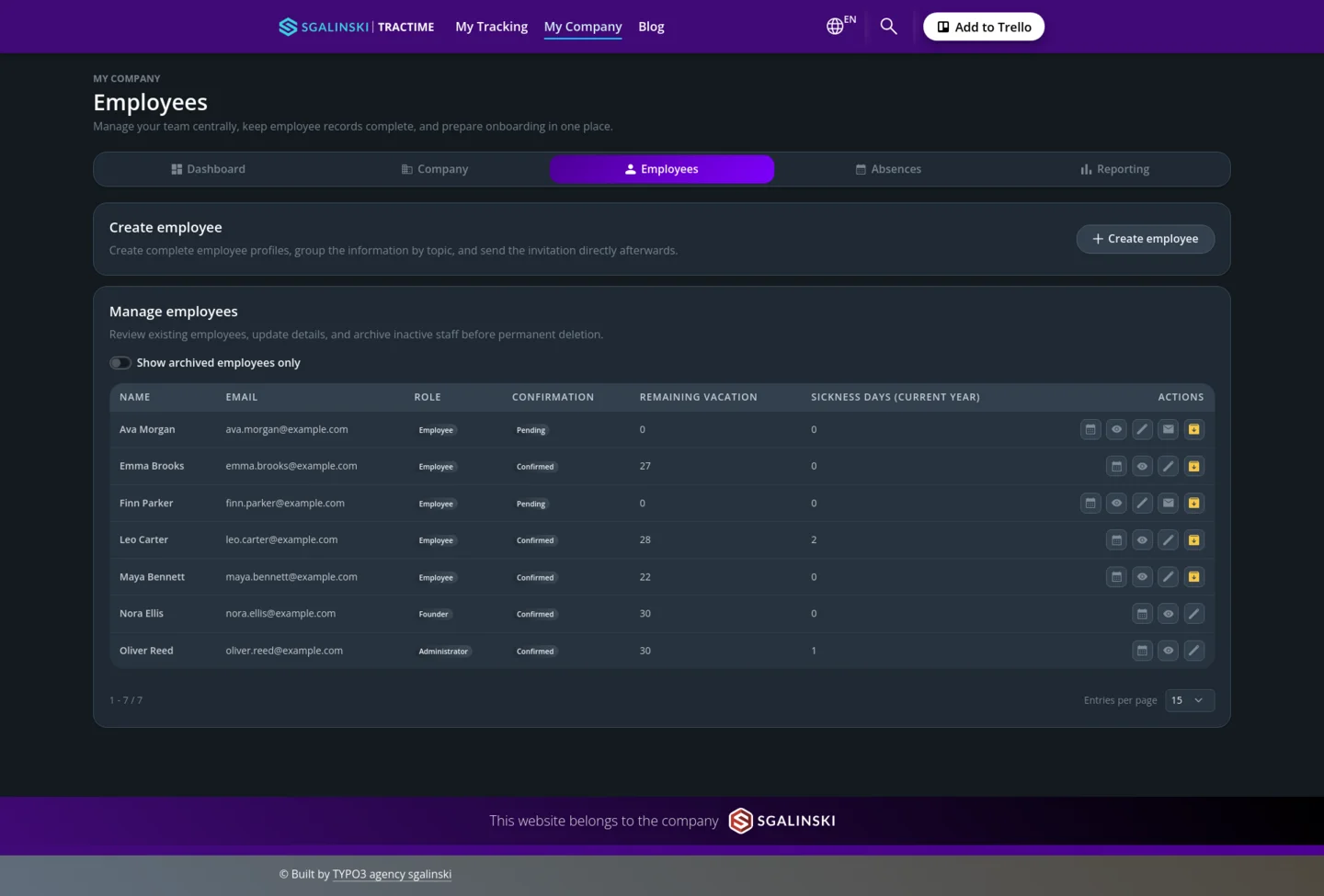
Set up your company, invite employees and assign the appropriate roles. Maintain employee records and link Tractime accounts for working-time reporting.
- Founder, administrator and employee roles
- Personal and contact details, compensation and bank details, and internal notes
- Employees can update their own permitted personal details
- Notifications when personal data changes
- Archive employees while retaining historical records
- Export company data, including absences, account entries, monthly snapshots and linked tracking records


Working-time models that fit your team
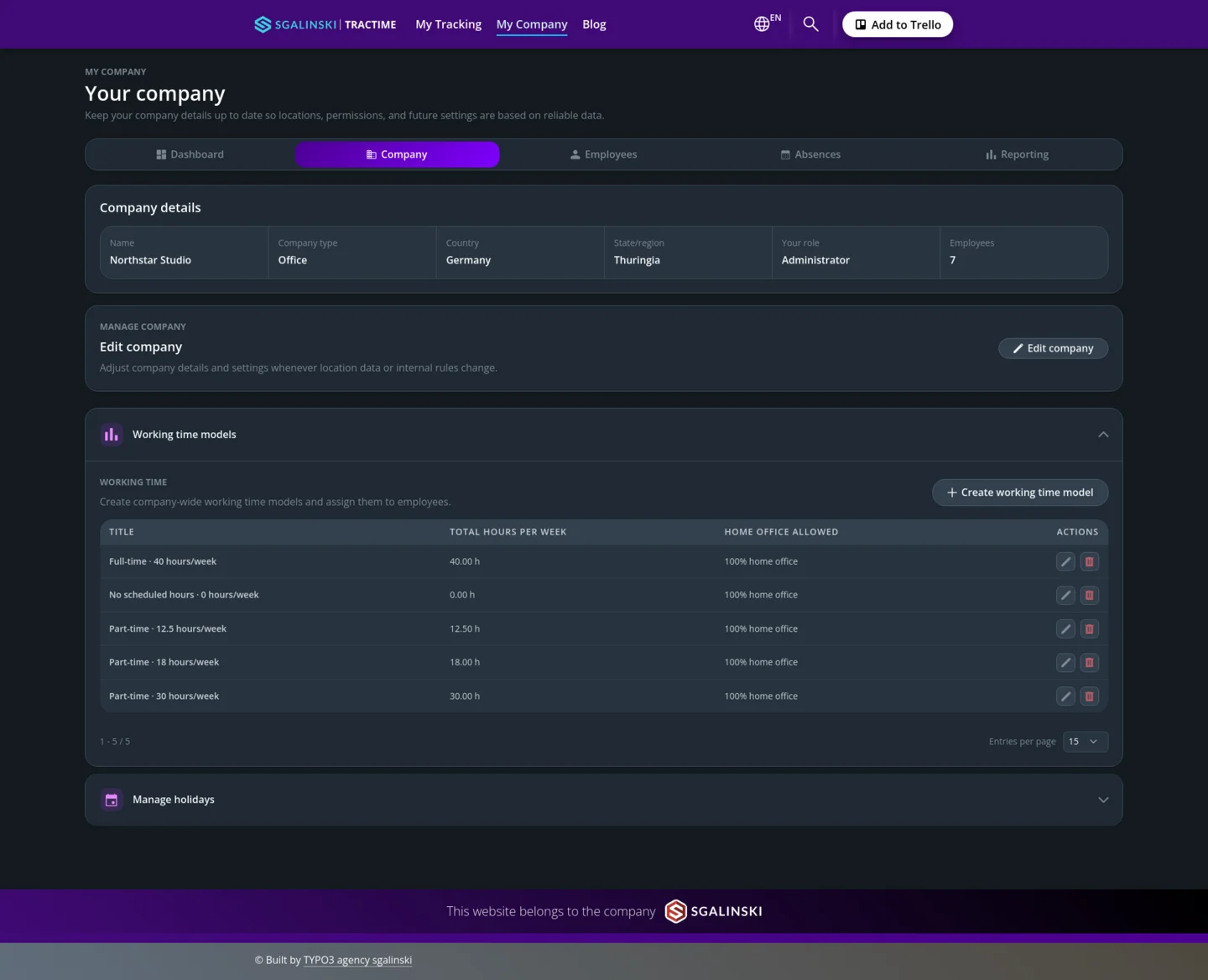
Set up full-time, part-time or custom working-time models with different hours for each weekday. Tractime compares recorded time with individual targets, taking configured holidays and approved absences into account.
- Individual weekly schedules, including weekend work
- Configurable home-office rules
- Overtime, underhours and account history at a glance
- Manager-controlled balance corrections with documented reasons
- Settle underhours using available full or half vacation days
Keep leave and absences organized
Employees submit vacation and other absences. Managers review pending requests from the dashboard or absence list. Configurable approval workflows and notifications help everyone stay informed.
- Full and half vacation days
- Sickness, child sickness, unpaid absence, parental leave, maternity protection and special leave
- Vacation entitlement, available days, requested days and projected remaining balance
- Requests spanning vacation years, carryover and vacation balance history
- Filters by year, absence type and person, plus a view of your own absences
- Sickness statistics and separate tracking of insurer-paid sickness


See today and the weeks ahead
The dashboard brings together personal statistics and relevant team overviews. Review recorded time, working-time and vacation balances, and pending requests. Team availability and upcoming events help with planning.
- Personal and company time statistics
- Searchable team availability and an overview of who is off today
- Absences, holidays and birthdays for the current and following week
- Public holiday imports for supported countries and regions
- Custom holidays assigned by location or employee
- Protected iCal subscriptions and optional employee-specific calendar feeds
Live reporting and saved monthly records
Review working time for the current week and month. Saved monthly snapshots document target hours, account movements and closing balances. Authorized managers can generate snapshots manually, or generation can run automatically when configured and enabled.
- Individual and company reporting views
- Targets adjusted for working schedules, holidays and absences
- Saved monthly snapshots and yearly summaries
- Manager-controlled snapshot regeneration
- Personal and company monthly summary emails
- Time-tracking and profile-review reminders, plus weekly event summaries
Automatic monthly snapshots, email summaries and reminders require the corresponding configuration and active scheduled jobs. Manual regeneration updates the existing monthly snapshot and may send report emails again.


Built for everyday use
Tractime is available in German and English, with responsive layouts and light, dark and contrast modes. Keyboard navigation, visible focus indicators and reduced-motion support help make the application easier to use.
Available features and visible data depend on your role, permissions and company settings.
The Tractime Power-Up for Trello
Record time and effort estimates right where you organize your tasks: on your Trello cards.
- Record time worked and effort estimates on cards
- Select a tracking date and add an optional comment
- Add missing time and correct excess time with negative entries
- Track in minutes, hours or days, depending on your configuration
- View time and estimates by person on cards and in board summaries
Add Tractime to the relevant Trello boards and connect your own Trello account. Open the connected Tractime application for detailed reporting, filters and CSV exports.
Compatible tracking data from Plus for Trello can be transferred.
Documentation
Use Tractime to record time worked and effort estimates on your Trello cards. Under My Tracking, review your entries and export the results. Under My Company, access your company dashboard and features for working hours, leave and absences.
The following guides explain setup and everyday use. Available features and visible data depend on your role and company settings.
Add Tractime to a Trello board
For board administrators
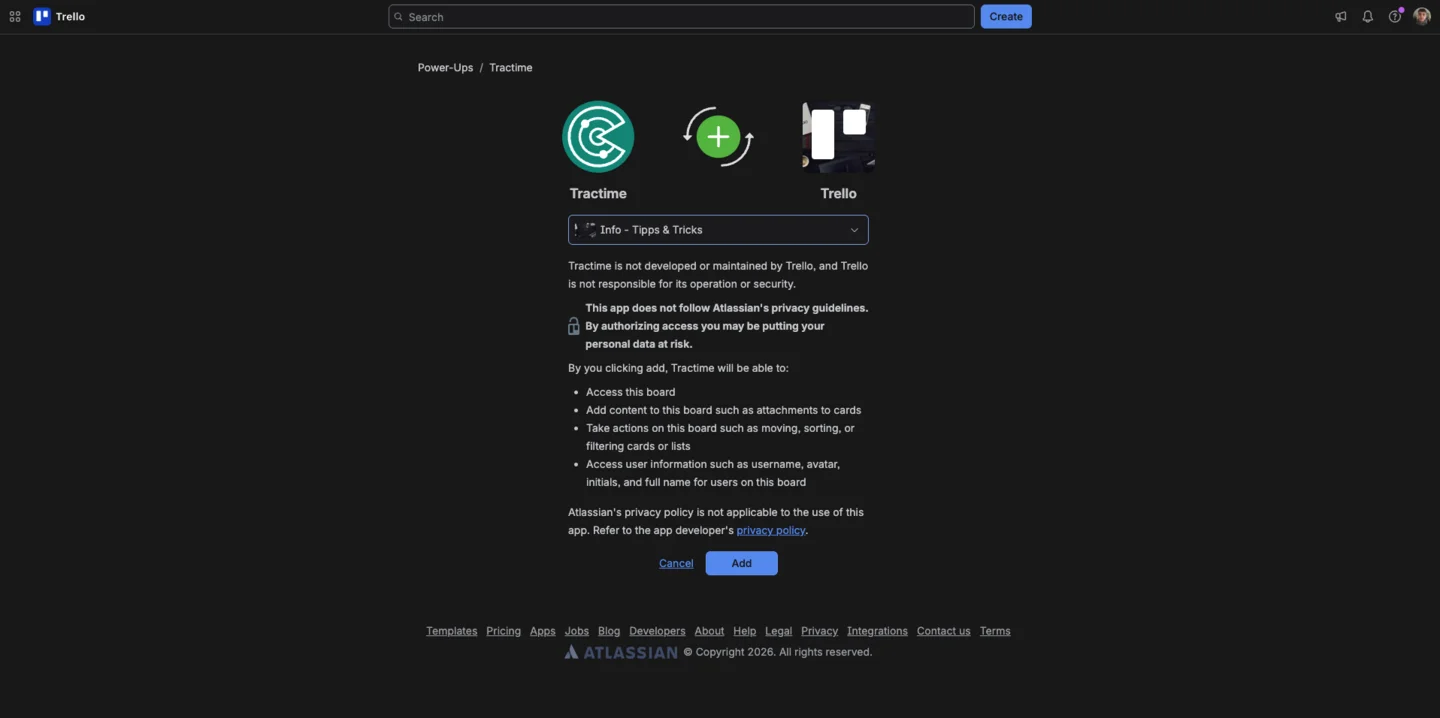
- Select “Add to Trello” in this website’s header.
- Sign in with your Trello account if required.
- On the Trello page, select the board where you want to use Tractime.
- Review the information shown and confirm with Add.
Repeat this process for each board where you want to record time.
Alternatively, add Tractime directly in Trello: open Power-Ups on the relevant board, select Add Power-Ups and search for Tractime.
The Power-Up is enabled for the selected board. Everyone who wants to record time then connects their own Trello account to Tractime.
Synchronization setup:
For background synchronization, a designated Trello workspace administrator should connect their account to Tractime and retain access to the relevant boards. Other team members do not need an administrator role to record time.
Connect your Trello account to Tractime
For all users
- Open My Tracking or My Company on this website.
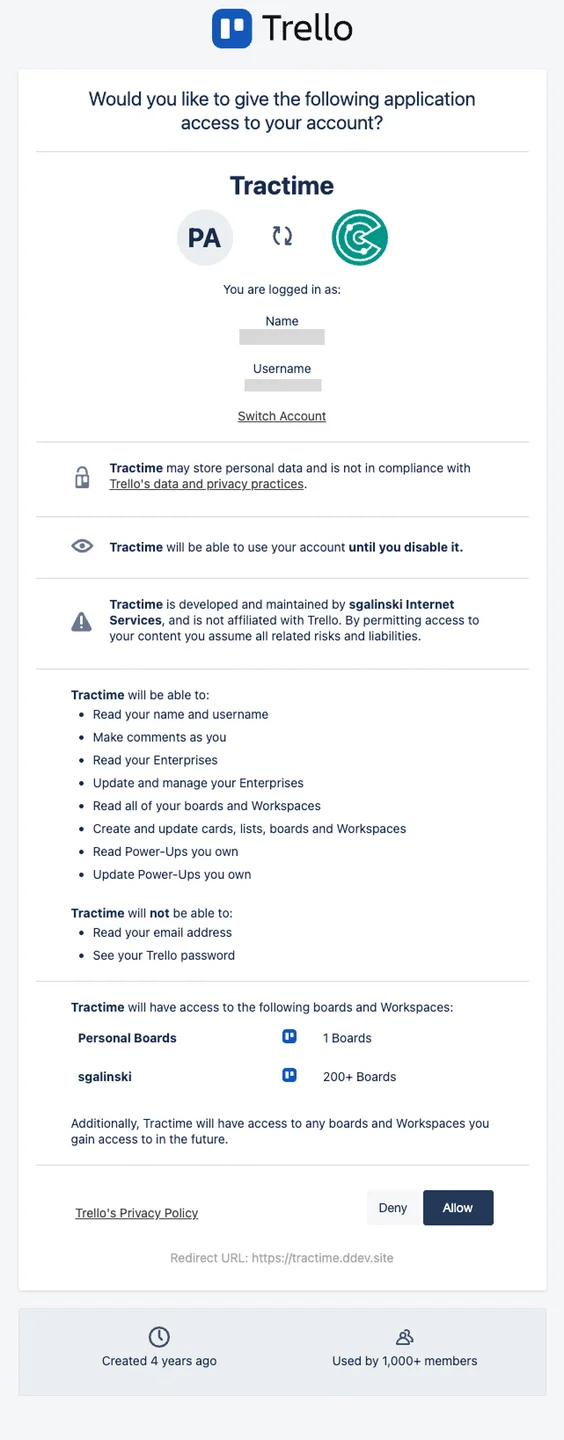
- Select Connect with Trello.
- Sign in to Trello if required.
- Check that the correct Trello account is selected. Use Switch Account if you need to change accounts.
- Review the requested permissions and select Allow if you want to grant access.
You will then be redirected to Tractime.
Note: Each person must connect their own Trello account to record time. Adding the Power-Up to a board does not automatically connect every board member.
Under My Tracking, you can review your time entries. Access to My Company features depends on your company membership and permissions.
Record time, estimate effort and correct entries
For all users
Record time worked
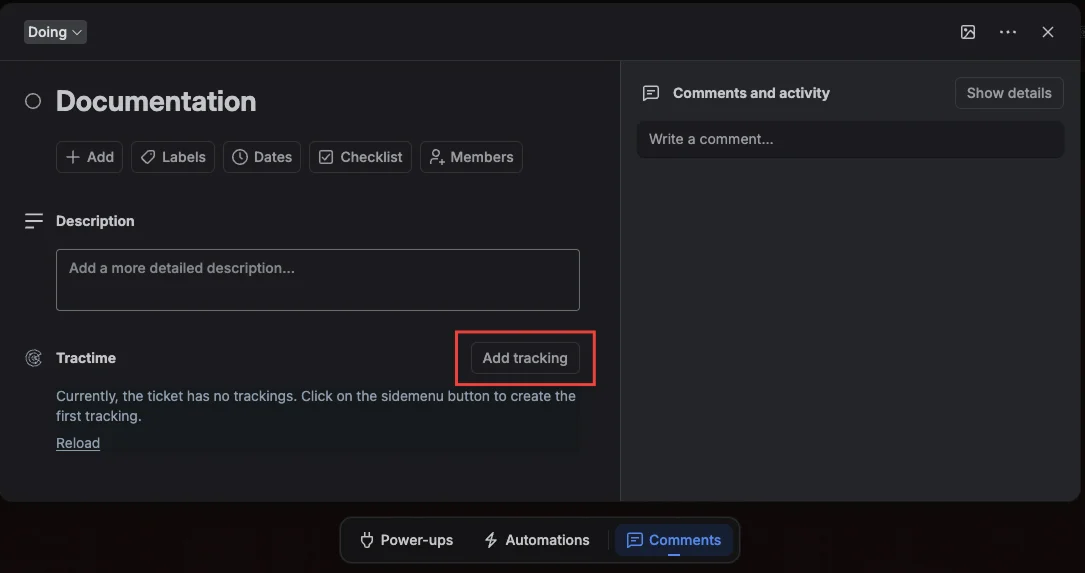
- Open the relevant Trello card.
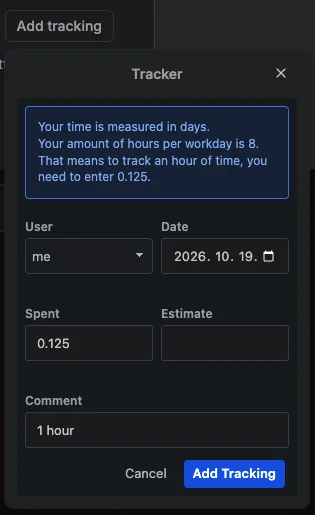
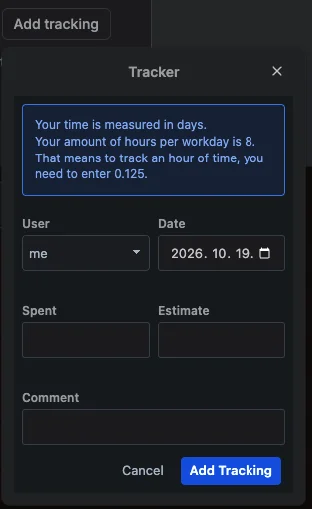
- In the Tractime section, select Add tracking.
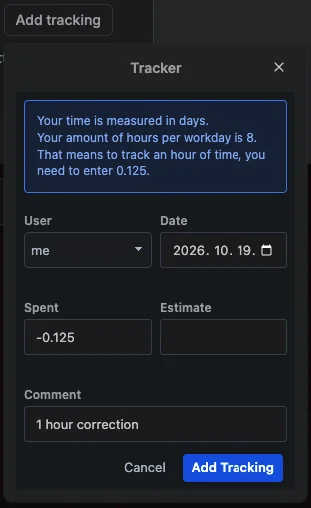
- Check the information about the tracking unit.
- Under Date, select the day you performed the work.
- Under Spent, enter the time worked.
- Optionally describe your work under Comment, then save the entry.
Use the date selector to record work from previous days.
Use the correct unit
Use the unit shown in the form: minutes, hours or days.
When tracking in days, conversion depends on the configured hours per workday. With eight hours per workday, for example, one hour is entered as 0.125.
The tracking unit and hours per workday apply to the relevant Trello workspace. They determine how recorded time is converted. Working-time models under My Company separately define employees target hours.
Estimate effort
Under Estimate, enter the expected effort using the same unit. Spent means time actually worked; Estimate means the estimate. An estimate does not replace a time entry.
Correct entries
Add another entry for missing time. Correct excess time by entering a negative value under Spent.
Use the original entry’s date and the same tracking unit. Add a comment explaining the correction.
Review card and board totals
For all users
The Tractime table on a card shows time worked under Spent and effort estimates under Estimate, by person and as totals. Select Reload to refresh the summary.
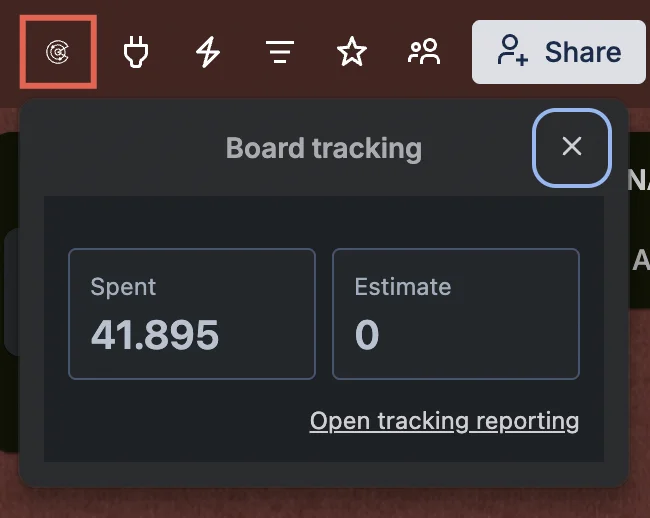
Select Tractime in the Trello board’s header. The Board tracking window shows the board totals. Select Open tracking reporting to open the detailed report.

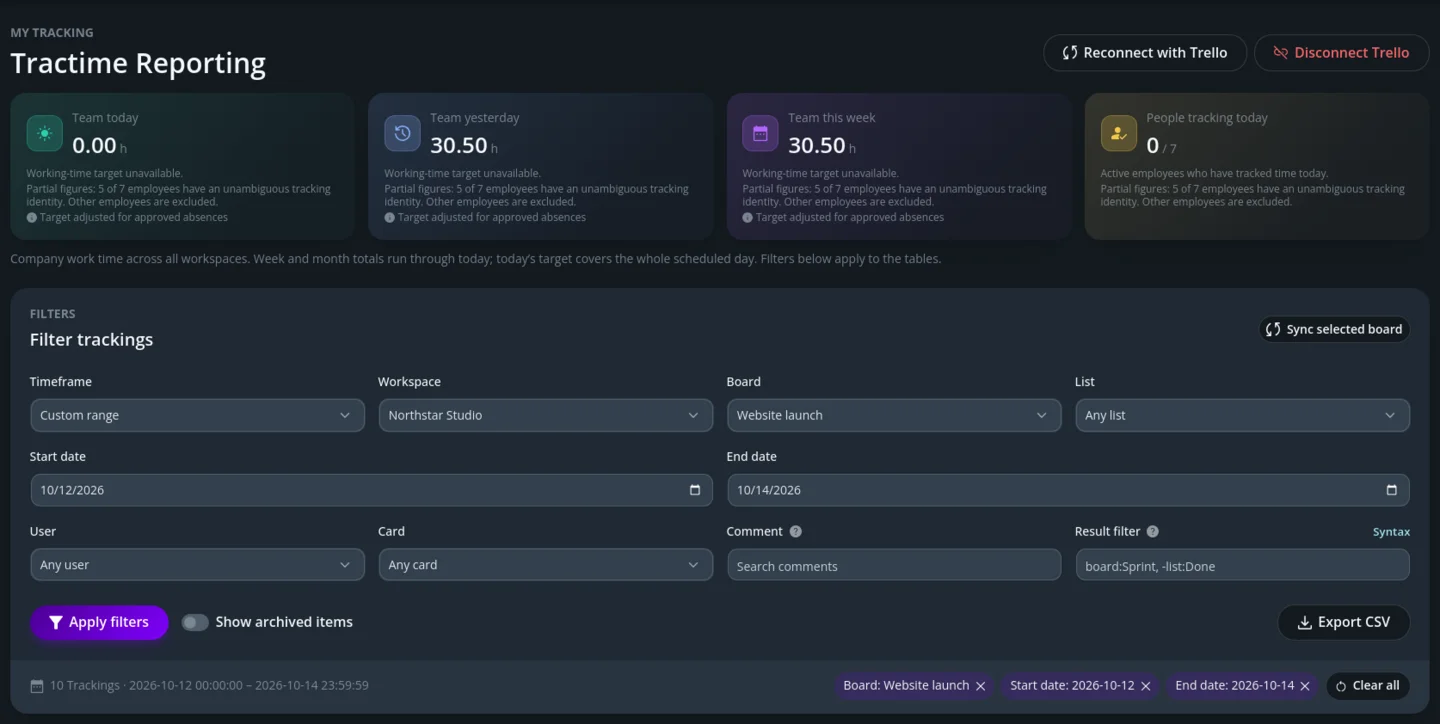
Review and export tracking entries
For all users; visible data depends on permissions
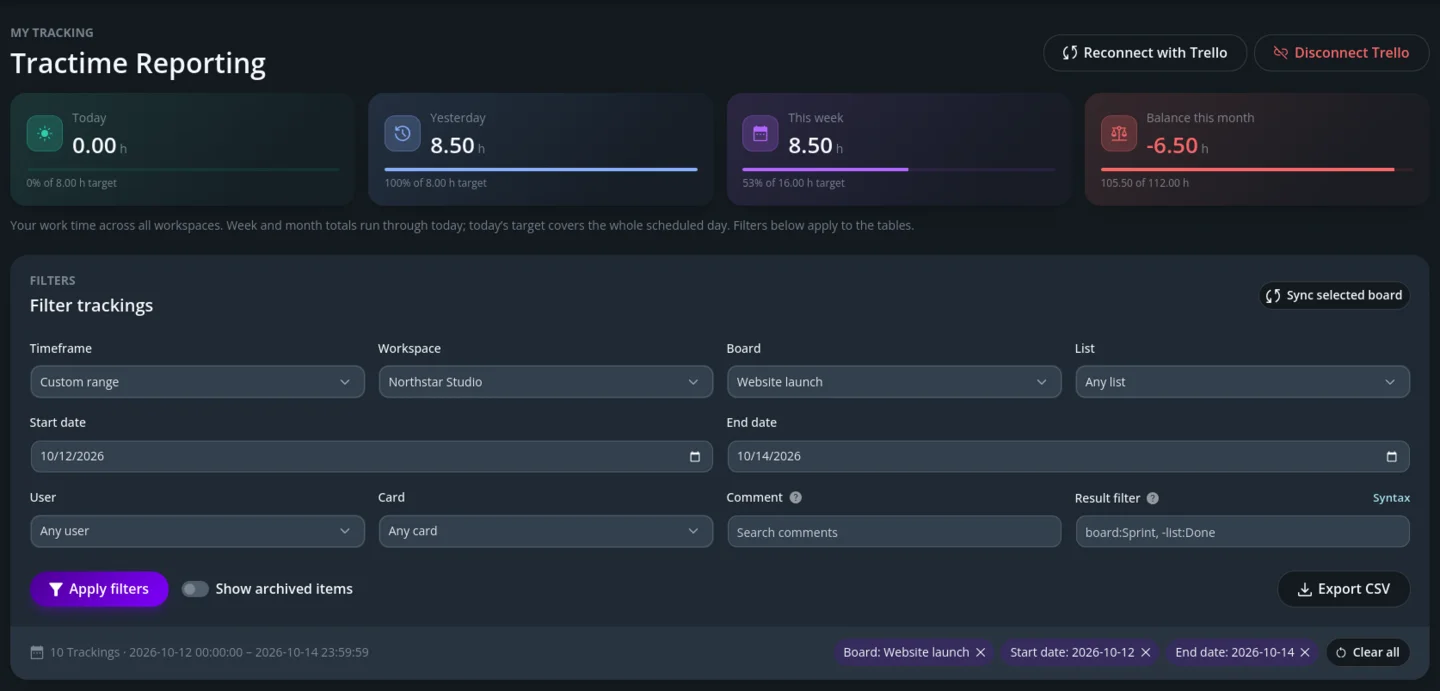
Open “My Tracking”.
- Select the relevant period under “Timeframe”.
- Narrow the selection using “Workspace”, “Board”, “List” and “User”.
- Search card titles using “Card” and tracking comments using “Comment”.
- Enable “Show archived items” if needed.
- Select “Apply filters”.
The “Result filter” field provides additional filtering options. Select “Syntax” for an explanation of the supported format.
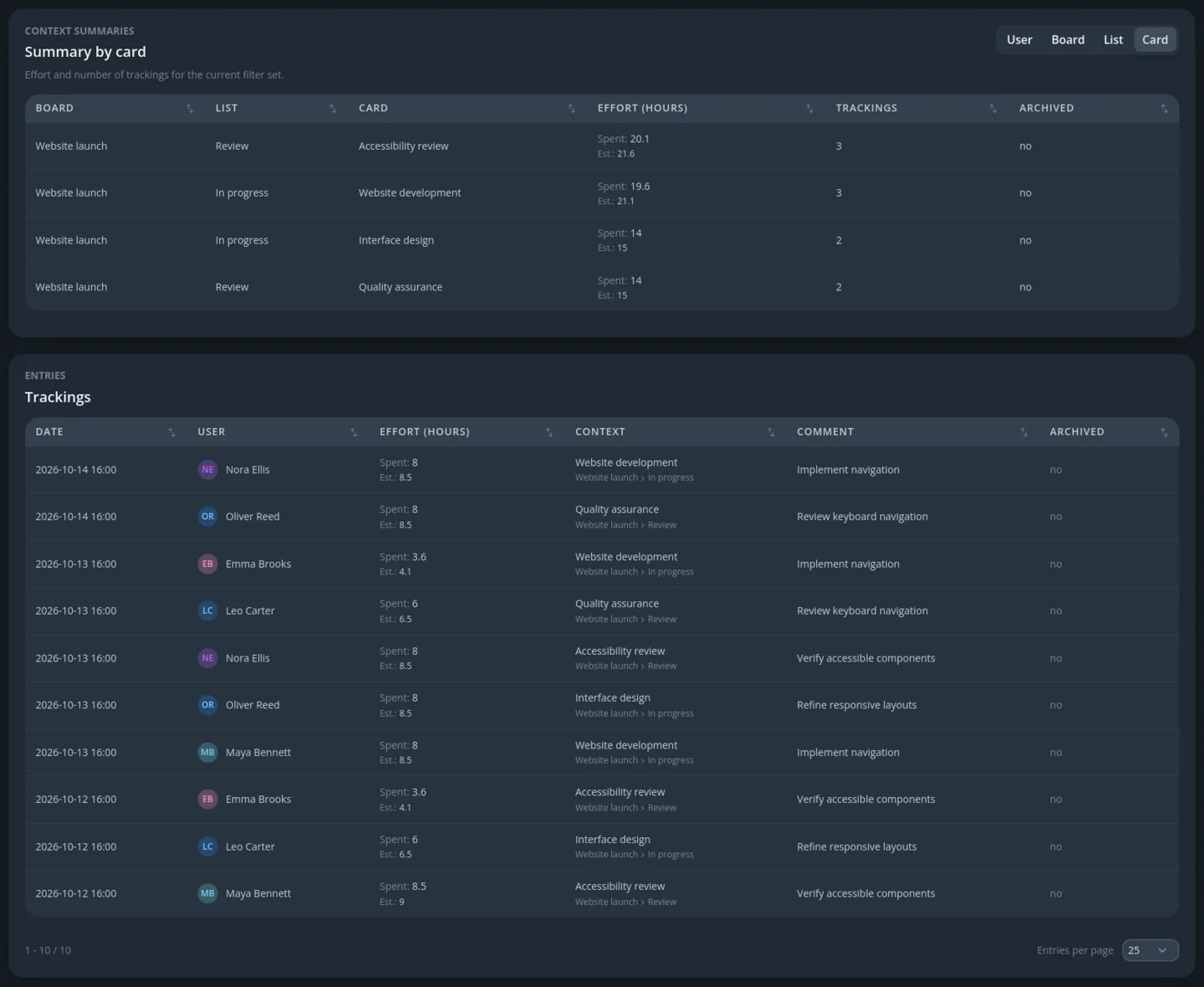
Under “Context summaries”, switch between summaries by user, board, list and card. The “Trackings” table shows individual entries. Check the unit in the table headings.
Select “Export CSV” to download the filtered report.
The statistics at the top show personal or company working-time figures, depending on your role. For an account linked to a company, they are calculated independently of the table filters below. Without company membership, personal statistics relate to the selected workspace.
Refresh board data
Select the relevant workspace and a specific board. Use “Sync selected board” to request synchronization. Processing runs in the background; updated data becomes available once it finishes.
Using the company Dashboard
For all users
Open “My Company” and select the dashboard.
The weekly overviews provide information about upcoming events. Which details and reasons for absence are visible depends on your role and the company settings.
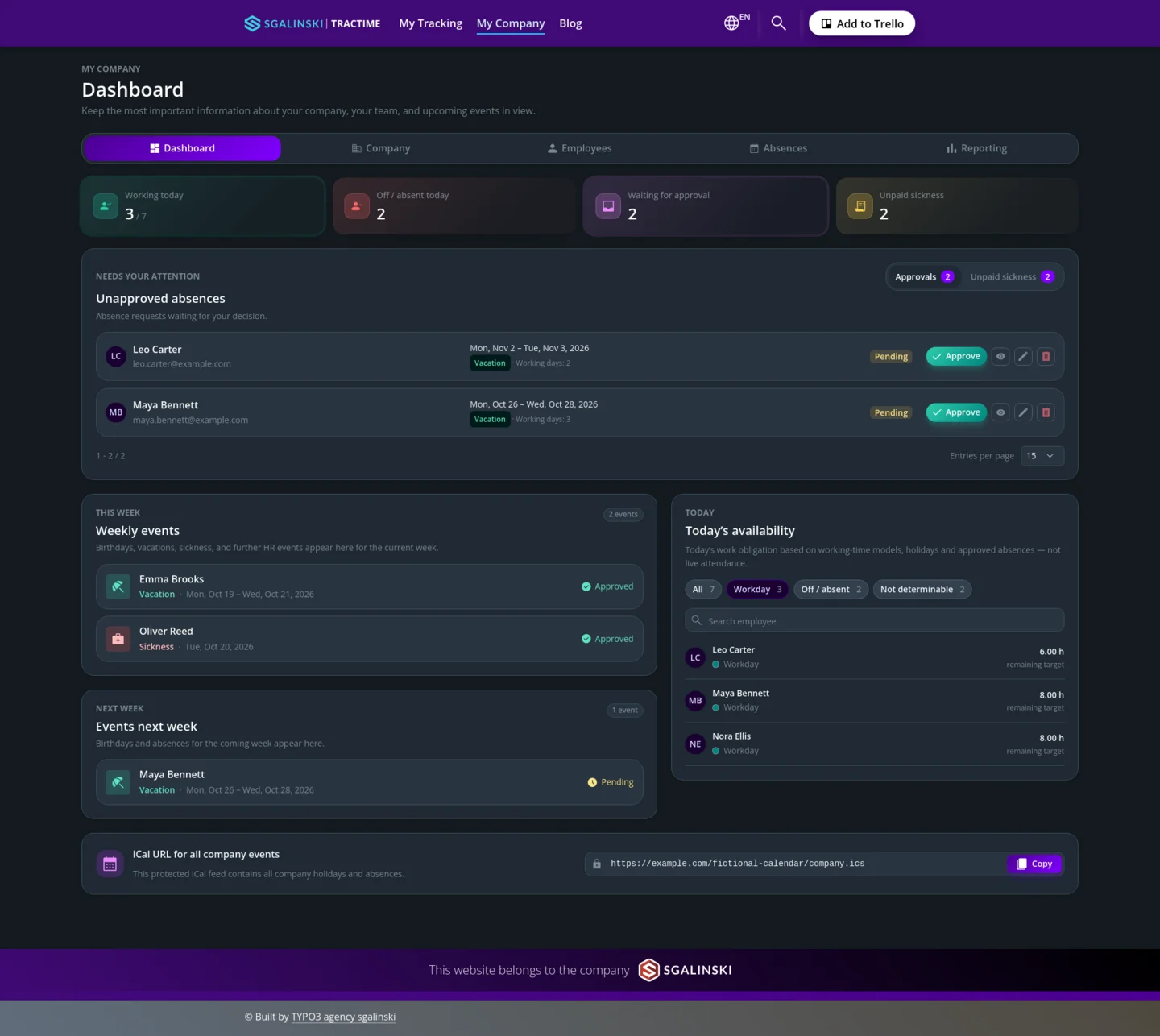
For administrators and company founders
The administration view displays team availability, pending approvals and further information on absence management. Availability is derived from working time models, public holidays and approved absences; it is not a real-time attendance tracking system.
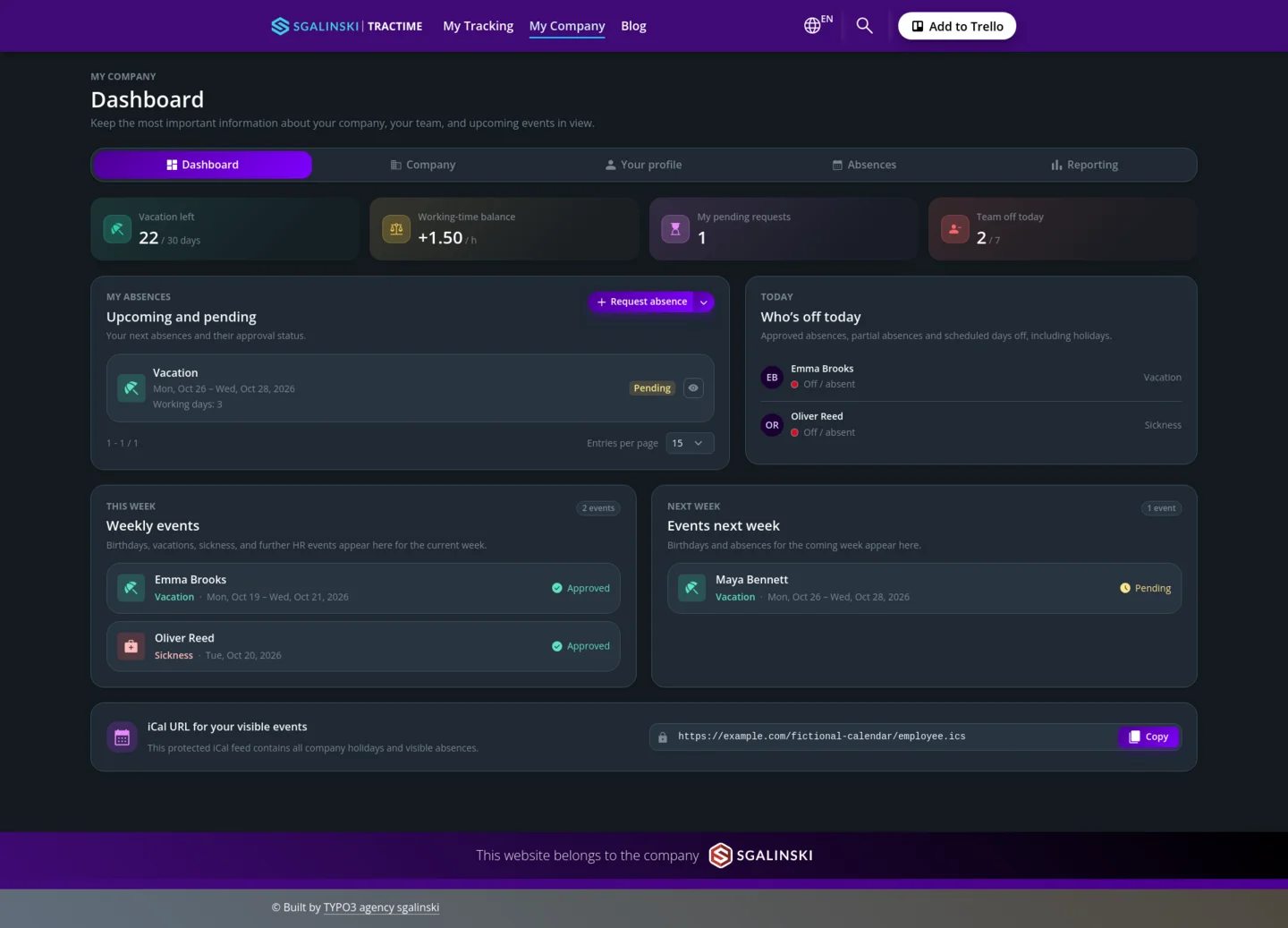
For staff
The personal overview shows your remaining holiday entitlement, your working time balance and any pending requests. You can check upcoming absences and their approval status, and submit new absence requests.
Leave and absences
For employees
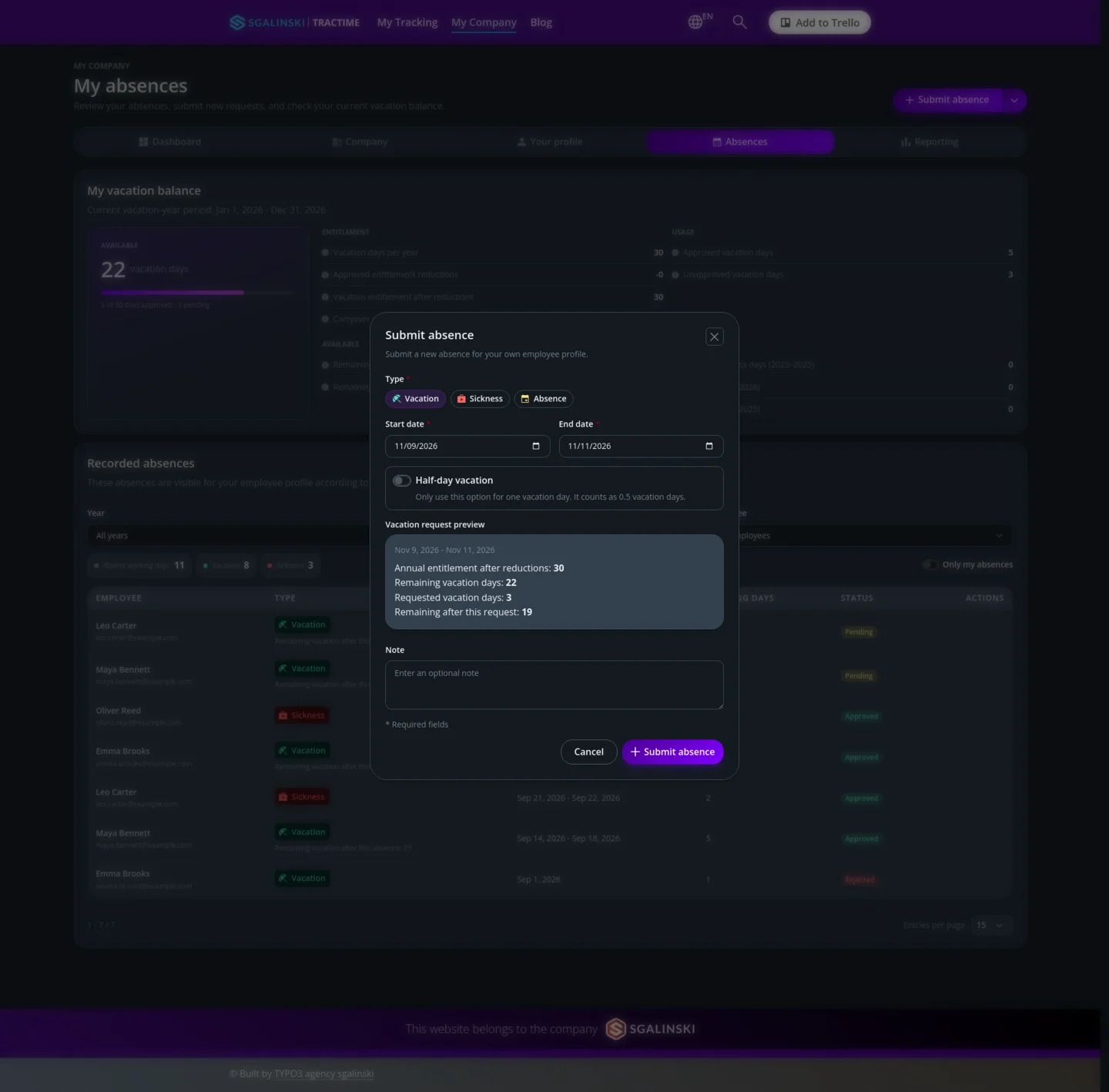
- Under “My Company”, open “Absences”.
- Start a new request and select the appropriate absence type.
- Enter the dates and required details. For vacation, select full or half days where available.
- Review your details and submit the request.
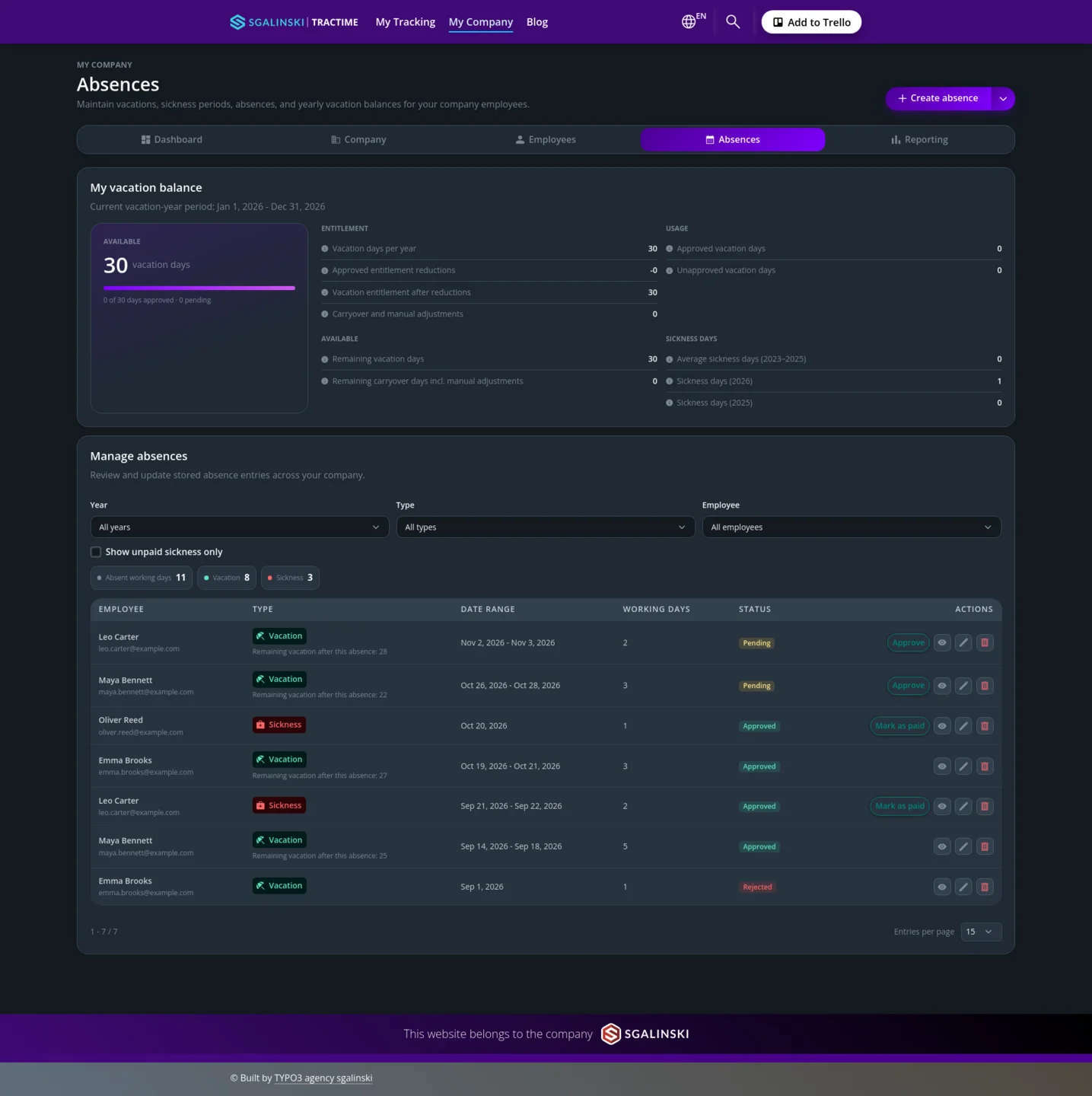
The overview shows your recorded absences and their approval status. Whether approval is required depends on the absence type and company settings.
For administrators and founders
Open the absence overview or check pending requests on the dashboard. Review the details and approve requests where required. Use the year, absence type and employee filters to find specific entries.
Your role and company settings determine which information about other people is visible.
Working time and monthly reports
For employees
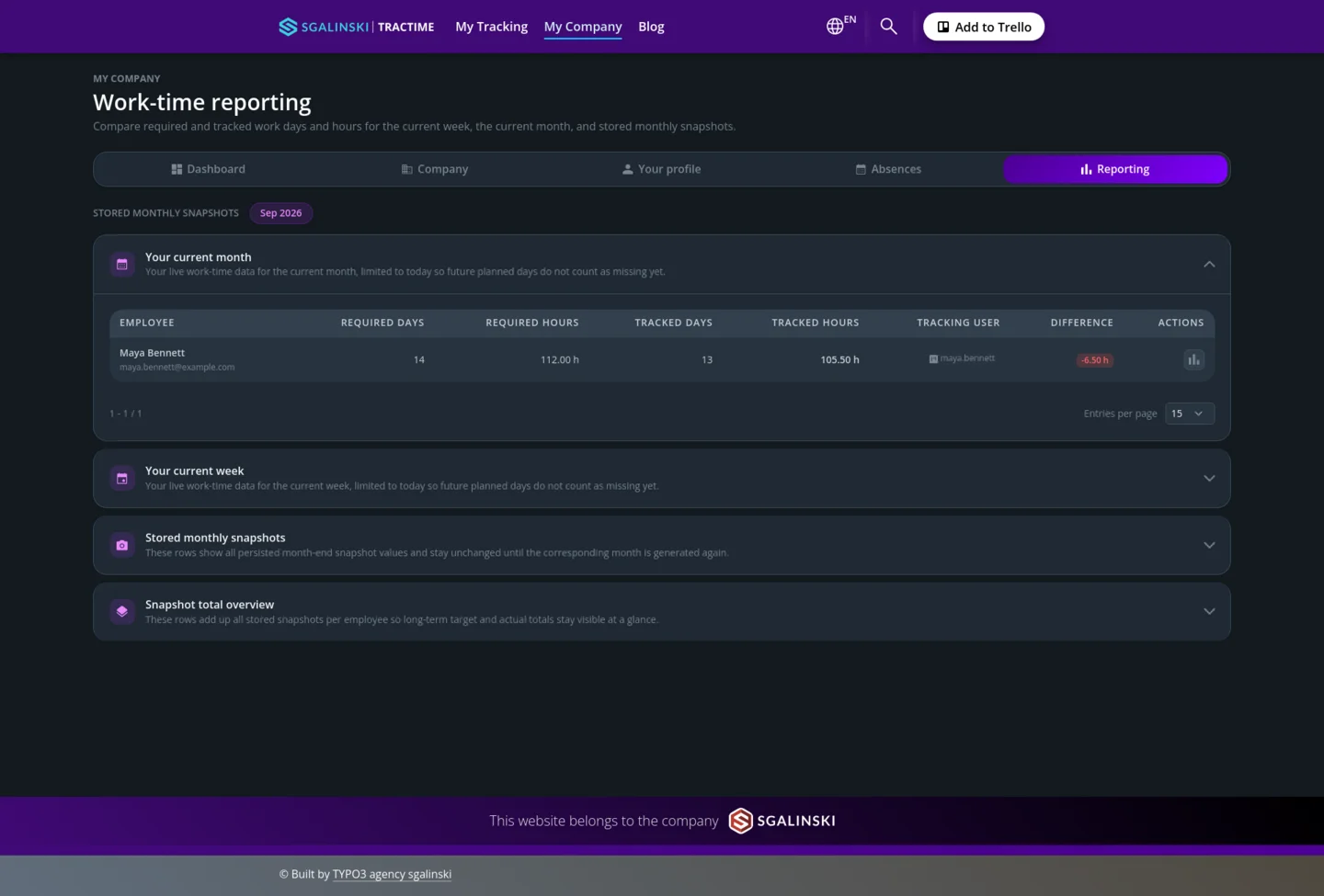
Under “My Company”, open “Reporting”. Review your required hours, tracked time and the reported difference for the current week or month.
Required hours take your assigned working-time model, relevant public holidays and approved absences into account. Stored monthly snapshots show the calculated results for completed months.
For administrators and founders
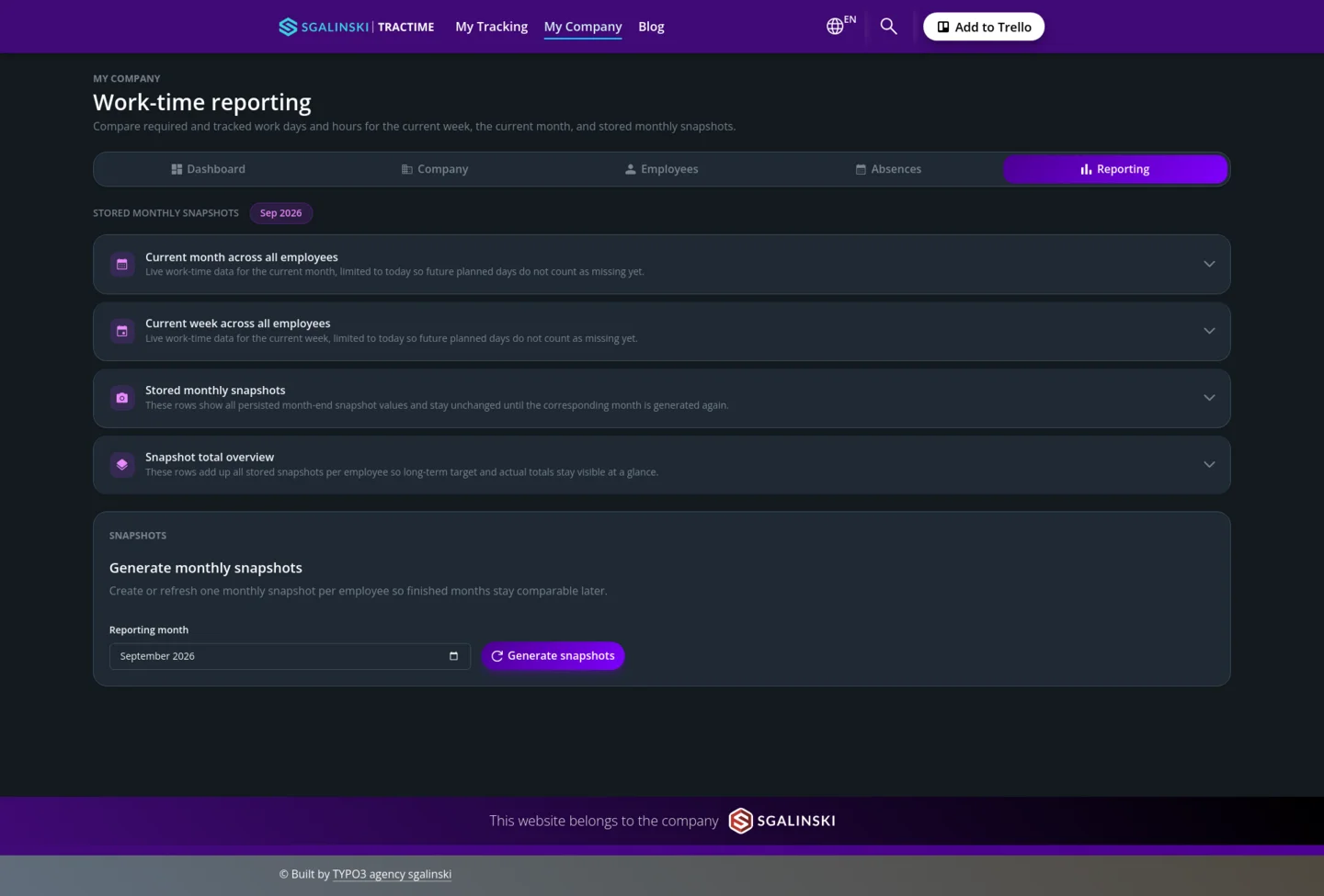
Review company-wide reports and individual employee figures. To generate or regenerate monthly snapshots, select the relevant month under “Generate monthly snapshots” and start generation.
Important: Regeneration updates the existing snapshot for the employee and month. It does not create an additional historical version. Report emails may be sent again.
Automatic monthly snapshots and email summaries require the corresponding configuration and active background processing.

Set up your company and employees
For administrators and founders
Invite employees and link accounts
- Under “My Company”, open “Employees”.
- Create the employee profile with the required details and assign an appropriate role.
- Send the invitation to the employee.
- After the invitation is accepted, check that the employee profile is linked to the correct Tractime account.
Correct account linking allows the employee’s recorded Trello time to be included in their working-time reports.
Create and assign working-time models
Open “Company” and create the required working-time models. Define the planned hours for each weekday, then assign the appropriate model to each employee.
Also check the relevant public holidays and their assignments. Together with approved absences, these settings form the basis for calculating required hours.
Accept an invitation
For invited employees
Open the link in your invitation email and follow the steps shown. Sign in with your own Trello account if required and confirm your company membership.
Important: Connecting Trello alone does not make you a member of a Tractime company. Company membership requires a separate assignment.
Trello workspaces and synchronization
For all users; synchronization setup by Trello workspace administrators
When you connect your Trello account, its associated Trello workspaces are registered in Tractime. You do not need to create them manually or enter a workspace ID.
Enable the Power-Up on each relevant board. Connecting your account alone does not automatically register every board.
Background synchronization uses a Trello workspace administrator’s connection. Arrange a handover before the responsible account loses access. Contact Tractime support when changing the responsible administrator.
Trello workspaces and Tractime company management are separate. Connecting with Trello does not automatically create membership in a Tractime company.
FAQ
Add the Tractime Power-Up to the relevant Trello boards and connect your own Trello account to Tractime. You can then record time and effort estimates on cards.
Yes. Each person connects their own Trello account. Adding the Power-Up to a board does not automatically connect all members.
Yes. Select the relevant date in the tracking form. Add another entry for missing time. Correct excess time with a negative entry using the same unit.
“Spent” is the time actually worked. “Estimate” is the expected effort. Both values use the configured tracking unit.
Under “My Tracking”, review and filter time recorded on Trello cards. Under “My Company”, access features for employees, working-time balances, leave and absences.
Yes. Working-time models can define different hours for each weekday. Target-hour calculations take the working-time model, relevant holidays and approved absences into account.
Yes. Compatible tracking comments from Plus for Trello can be imported during synchronization. Coverage depends on the comment format, available historical comments and synchronization limits. A complete transfer of all historical data is not guaranteed.
Yes. Under “My Tracking”, use “Export CSV” to download filtered reports. Users with the founder role can also export company data.
No. Visible data and available features depend on roles, permissions and company settings.
Contact us
Are you interested in our Tractime Trello Power-Up or in one of our other products, or do you have other inquiries for us? – Then please contact us. We are looking forward to your message!